
Markdown的基础格式语法
参考链接:Basic writing and formatting syntax - GitHub Docs
Headings
要创建标题,请在标题文本前添加一个到六个井号 #符号。您使用的井号数量将决定标题的层级和字体大小。
# A first-level heading
## A second-level heading
### A third-level heading
Styling text
您可以在评论字段和 .md 文件中使用粗体、斜体、删除线、下标或上标来强调文本。
| Style | Syntax | Keyboard shortcut | Example | Output |
|---|---|---|---|---|
| Italic 斜体 | * *or _ _or <em></em> | Ctrl + I (Windows/Linux)Command + I (Mac) | _This text is italicized_ | This text is italicized |
| Bold 粗体 | ** **or __ __or <strong></strong> | Ctrl + B (Windows/Linux)Command + B (Mac) | **This is bold text** | This is bold text |
| Bold and nested italic 粗体和嵌套的斜体 | ** ** and _ _ | None | **This text is _extremely_ important** | This text is extremely important |
| All bold and italic 加粗和斜体 | *** *** | None | ***All this text is important*** | All this text is important |
| Subscript 下标 | <sub></sub> | None | This is a <sub>subscript</sub> text | This is a subscript text |
| Superscript 上标 | <sup></sup> | None | This is a <sup>superscript</sup> text | This is a superscript text |
| Underline 下划线 | <ins></ins> | None | This is an <ins>underlined</ins> text | This is an underlined text |
| Strikethrough 删除线 | ~~ ~~or ~ ~or <del> </del> | None | ~~This was mistaken text~~ |
Table
| First Header | Second Header |
|---|---|
| Content Cell | Content Cell |
| Content Cell | Content Cell |
定义单元格时的宽度可以不同,不需要每个竖线 | 在列里完全对齐。但是标注表头的连字线 - 必须不少于三个。
| First Header | Second Header |
| ------------ | ------------- |
| Content Cell | Content Cell  |
| Content Cell | Content Cell  |

定义单元格时的宽度可以不同,不需要每个竖线 `|` 在列里完全对齐。但是标注表头的连字线 `-` 必须不少于三个。
| Left-aligned | Center-aligned | Right-aligned |
|---|---|---|
| git status | git status | git status |
| git diff | git diff | git diff |
| Left-aligned | Center-aligned | Right-aligned |
| :----------- | :------------: | ------------: |
| git status   |   git status   |    git status |
| git diff     |    git diff    |      git diff |
重要
额外注意:表格中的 特殊符号处理。
Quoting text
你可以使用 > 引用文本。
Text that is not a quote

> Text that is a quote
Text that is not a quote
Text that is a quote
引用的文本会在左边带有垂直线缩进,并以灰色字体显示。
Quoting code
行内代码块
Use `git status` to list all new or modified files that haven't yet been committed.用
git status可以查看哪些新文件或修改过的文件还没提交。代码块
一些基本的 Git 命令如下:
```bash
git status
git add
git commit
```
一些基本的 Git 命令如下:
git status
git add
git commit
Links
Standard
您可以使用方括号包裹链接文本 [ ] ,然后使用圆括号包裹 URL ( ) 来创建内联链接。您还可以使用快捷键 Ctrl + K 来创建链接。当您选中一些文本时,可以粘贴剪贴板中的 URL,以自动从选中内容创建链接。
你也可以通过高亮文本并使用快捷键 Ctrl + V 创建 Markdown 链接。如果你想用链接替换文本,请使用快捷键 Ctrl + Shift + V 。
This site was built using [GitHub Pages](https://pages.github.com/).
In-article
重要
使用文内跳转之前,有必要先了解一下大部分Markdown引擎转换标题为HTML标签的规则
当 Markdown 处理器(如 Typora、VS Code、GitHub)将你的 Markdown 转换为 HTML 时,它会自动为所有标题生成一个唯一的 id 属性,以便可以被链接。
这个 id 的生成规则通常是:
转换 为小写
移除 标点符号(例如:
!"#$%&'()*+,./:;<=>?@[\]^_{|}~等)将空格 替换 为连字符
-连续连字符 合并 为单个:
# Hello--World → hello-world去除 首尾连字符/空格
首文字是 数字 会在数字前面加上下划线
_重复 ID 会追加
-1,-2等:# Heading → heading # Heading → heading-1 # Heading → heading-2
示例:
提示
假设你有这样一个标题:
### 1. How to use #target?
当它被渲染成 HTML 时,会变成类似这样的结构:
<h3 id="_1-how-to-use-target">How to use #target?</h3>
请注意 id 的变化:
1->_1(前面添加下划线)How->how(小写)(空格)->-(连字符)use->use(不变)#(井号) -> (被移除)target->target(不变)?(问号) -> (被移除)
所以,最终生成的 id 是 _1-how-to-use-target。
为了跳转到这个标题,你的链接应该写:
[Go](#_1-how-to-use-target)
总结
| 你的 Markdown | 生成的 HTML id | 正确的链接写法 |
|---|---|---|
### target | target | [go](#target) |
### My Title | my-title | [go](#my-title) |
### What is this? | what-is-this | [go](#what-is-this) |
### Chapter 1: Introduction | chapter-1-introduction | [go](#chapter-1-introduction) |
Relative links
您可以在渲染后的文件中定义相对链接和图像路径,以便读者导航到仓库中的其他文件。
相对链接是相对于当前文件的链接。例如,如果您在仓库的根目录中有一个 README 文件,并且在 docs/CONTRIBUTING.md 中还有一个文件,那么在 README 中指向 CONTRIBUTING.md 的相对链接可能如下所示:
[项目贡献指南](docs/CONTRIBUTING.md)
GitHub 会自动根据你当前所在的分支来转换你的相对链接或图片路径,确保链接或路径始终有效。链接路径将相对于当前文件。链接以 / 开始时,将相对于仓库根目录。你可以使用所有相对链接操作符,如 ./ 和 ../ 。
你的链接文本应该在一行内。下面的示例将无法工作。
[项目
贡献指南](docs/CONTRIBUTING.md)
相对链接对于克隆您仓库的用户来说更方便。绝对链接在您仓库的克隆版本中可能无法工作,我们建议使用相对链接来引用仓库内的其他文件。
Reference-style Links
参考式链接 用来集中定义链接,然后在文档中多处引用,避免一处改处处改的情况。
- 定义链接(通常在文档末尾)
[链接名称]: https://example.com "可选标题"
- 使用链接
这是一个[示例链接][链接名称],另一个[地方也使用][链接名称]。
Custom anchors
您可以使用标准 HTML 锚点标签( <a name="unique-anchor-name"></a> )为文档中的任何位置创建导航锚点。为了避免引用不明确,应为锚点标签使用唯一的命名方案,例如在 name 属性值前添加前缀。
提示
自定义锚点不会出现在文档大纲或目录中。
你可以通过给锚点设置的 name 属性值来链接到自定义的锚点,这种链接方式和链接到自动为标题生成的锚点时的语法是一样的。
例如:
# 段落标题

一些文本xxx,111,222

<a name="my-custom-anchor-point"></a>
我想链接到某个内容,但那个内容没有单独的标题。

(… 更多文本…)

[指向特定锚点的链接](#my-custom-anchor-point)
提示
自动标题链接功能不会考虑自定义锚点。
Line breaks
要在 .md 文件中创建换行,你需要包含以下之一:
在第一行末尾包含两个空格。
This example
Will span two lines
在第一行末尾包含一个反斜杠。
This example\
Will span two lines
在第一行末尾包含一个 HTML 单行换行标签。
This example<br/>
Will span two lines
如果在两行之间留有一行空行,.md 文件会将这两行通过空行隔开:
This example

Will have a blank line separating both lines
Images
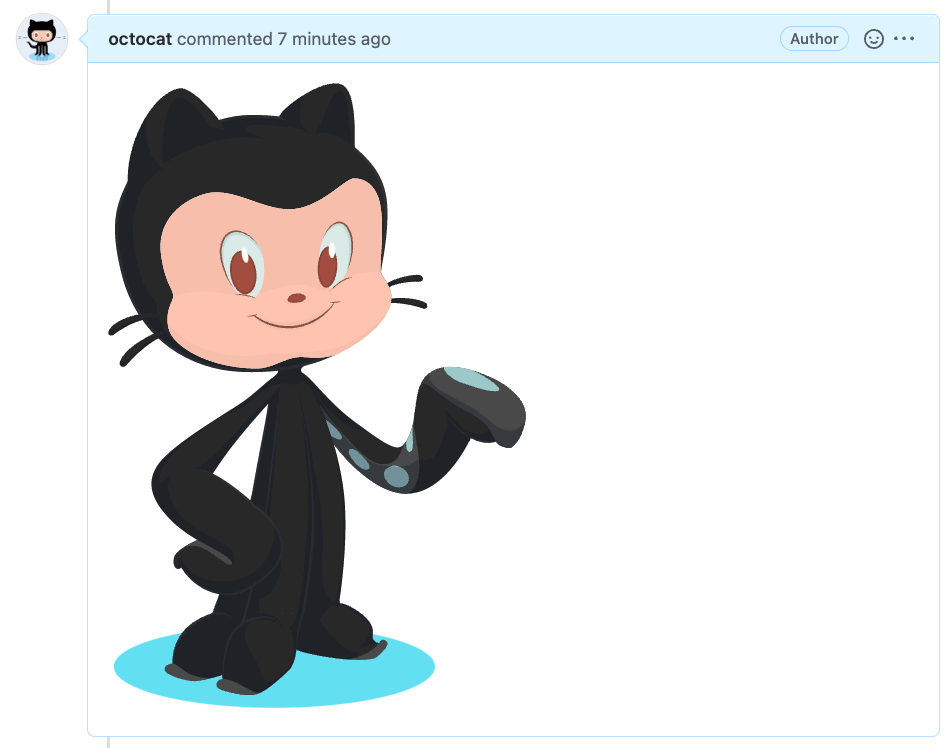
你可以通过添加 ! 并将替代文本包裹在 [ ] 中来显示图片。替代文本是图片信息的简短文本等价物。然后,将图片链接包裹在括号 () 中。

提示
请尽量使用相对链接而不是绝对链接。
The Picture element
支持 HTML 中的 <picture> 元素。
Lists
你可以通过在一行或多行文本前使用 - 、 * 或 + 来创建一个无序列表。
- George Washington
* John Adams
+ Thomas Jefferson
要使用有序列表,请在每行前面使用一个数字。
1. James Madison
2. James Monroe
3. John Quincy Adams
Nested Lists
您可以将一个项目符号列表嵌套到另一个项目符号列表之下,从而创建一个嵌套列表。只需将一个或多个列表项缩进到另一个项目符号之下即可。
1. First list item
   - First nested list item
     - Second nested list item
提示
在基于网页的编辑器中,您可以首先选中所需的行,然后分别使用 Tab 或 Shift + Tab 来缩进或反缩进一行或多行文本。


Task lists
要创建任务列表,请在列表项前使用破折号和空格,后跟 [ ] 。要标记任务已完成,请使用 [x] 。
- [x] #739
- [ ] https://github.com/octo-org/octo-repo/issues/740
- [ ] Add delight to the experience when all tasks are complete :tada:
如果任务列表项描述以括号开头,您需要使用 \ 进行转义 :
- [ ] \(Optional) Open a followup issue
Using emojis
您可以通过输入 :EMOJICODE: ,一个冒号后跟表情符号的名称来添加表情符号到您的写作中。
输入 : 将弹出一个建议的表情符号列表。随着您输入内容,列表会进行过滤,找到所需的表情符号后,按下 Tab 或 Enter 完成高亮显示的结果。
要查看所有可用的表情符号和代码列表,请参阅 the Emoji-Cheat-Sheet.
Paragraphs
你可以在文字之间留一个空行来创建新的段落。
Footnotes
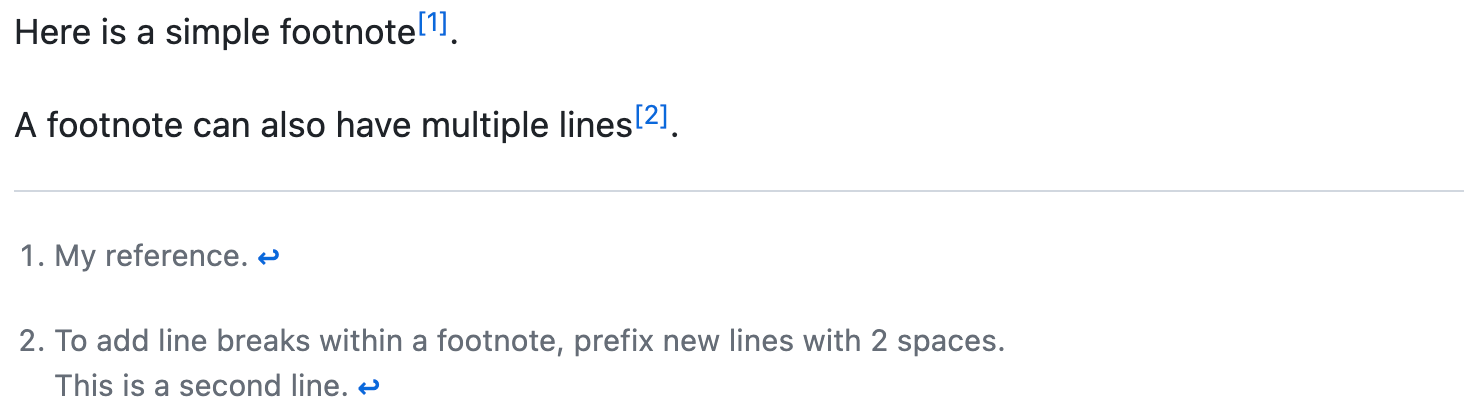
你可以用这种中括号语法给内容添加脚注:
Here is a simple footnote[^1].

A footnote can also have multiple lines[^2].

[^1]: My reference.
[^2]: To add line breaks within a footnote, add 2 spaces to the end of a line.
This is a second line.
Here is a simple footnote[1].
A footnote can also have multiple lines[2].
提示
好像typora就不支持第二行脚注。
这个脚注会显示成这样:
提示
在Markdown中,脚注的位置不会影响它最终显示的位置。你可以在提到脚注的地方直接写脚注,它还是会出现在Markdown的底部。
Alerts
Alerts,有时也被称为提示或警告,是一种基于块引言语法的 Markdown 扩展,用于强调关键信息。在 GitHub 上,它们会以不同的颜色和图标显示,以表明内容的重要性。
仅在对用户成功至关重要的情况下使用 Alerts,并且每篇文章中限制使用一到两个,以防止读者感到负担过重。此外,应避免连续使用 Alerts。Alerts 不能嵌套在其他元素内。
要添加 Alerts,请使用一个特殊块引言行指定 Alerts 的类型,然后在标准块引言中输入 Alerts 信息。有五种类型的 Alerts:
> [!NOTE]
> Useful information that users should know, even when skimming content.

> [!TIP]
> Helpful advice for doing things better or more easily.

> [!IMPORTANT]
> Key information users need to know to achieve their goal.

> [!WARNING]
> Urgent info that needs immediate user attention to avoid problems.

> [!CAUTION]
> Advises about risks or negative outcomes of certain actions.
以下是渲染后的提示信息:
注
Useful information that users should know, even when skimming content.
提示
Helpful advice for doing things better or more easily.
重要
Key information users need to know to achieve their goal.
注意
Urgent info that needs immediate user attention to avoid problems.
警告
Advises about risks or negative outcomes of certain actions.
Hiding content with comments
你可以通过将内容放在 HTML 注释中来告诉 GitHub 隐藏 Markdown 渲染的内容。
<!-- 这段内容在渲染成Markdown时不会显示 -->
Ignoring Markdown formatting
你可以通过在 Markdown 字符前使用 \ 来告诉 GitHub 忽略(或转义)Markdown 格式。
Let's rename \*our-new-project\* to \*our-old-project\*.
Let's rename *our-new-project* to *our-old-project*.
脚注示例